Online video compressor
Compress video files without losing quality
Upload your video to Vimeo in almost any common file format to automatically compress it. Walk away with a smaller file you can edit and share without leaving the platform.
Large video files shouldn’t slow your workflow
Video file too large to share or upload?
Losing quality every time you compress?
Downloading software just to reduce a file?
Compressing in one tool, editing in another?
Everything you need to compress and share video
Multi-format support
Quality-preserving compression
Mobile compression
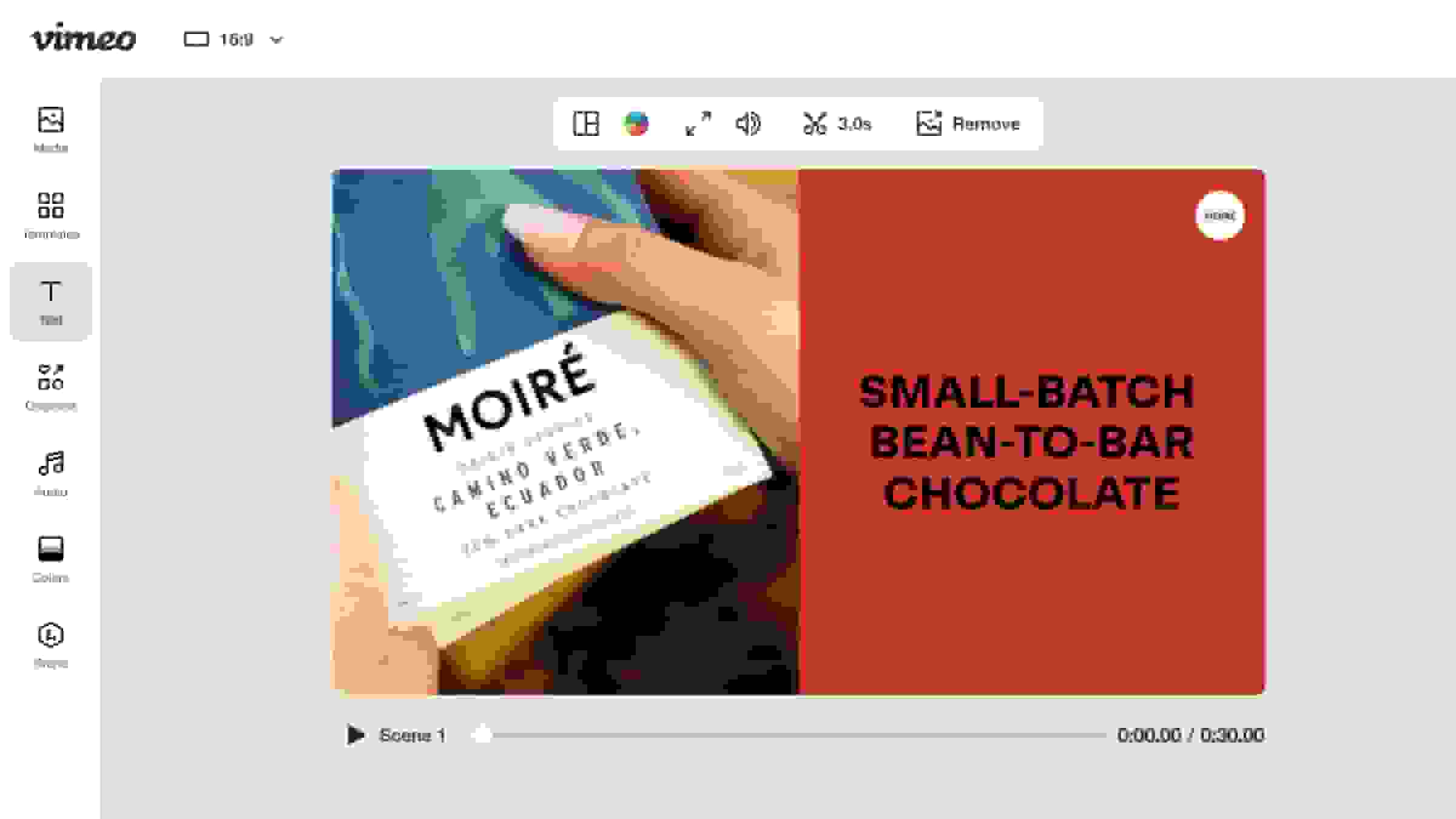
Built-in video editor
Multiple export options
Instant hosting and sharing
Smaller files for every platform and project
Email and messaging
Large video files get blocked and bounced by email clients. Compress your video with Vimeo and share a private link instead of worrying about attachment size limits.Posting on social media
Compressed videos are more likely to meet platform file size requirements. After you’ve posted, Vimeo lets you track how your audience engages with video analytics after you share.Website and landing page embeds
Smaller video files load faster on your site, keeping visitors engaged instead of waiting for buffering and bouncing.Client deliverables
Send clients a compressed video via Vimeo’s collaboration tools so they don’t have to download a massive file to review it.Internal communications
Replace long written updates with compressed video messages your team can watch on any device at their own pace.Meet video size requirements
Our online video compressor allows you to easily reduce the size of your video from your browser and fit wherever you want to share it.
How to reduce video file size in four simple steps
Step 1: Upload your video
Log in to your Vimeo account and upload your file in almost any format. If you’ve used a third-party editing tool like Adobe Premiere Pro or Apple Final Cut Pro, adjust compression-related settings like target file size and output bitrate before uploading the file to Vimeo for more granular control.
Step 2: Edit if needed
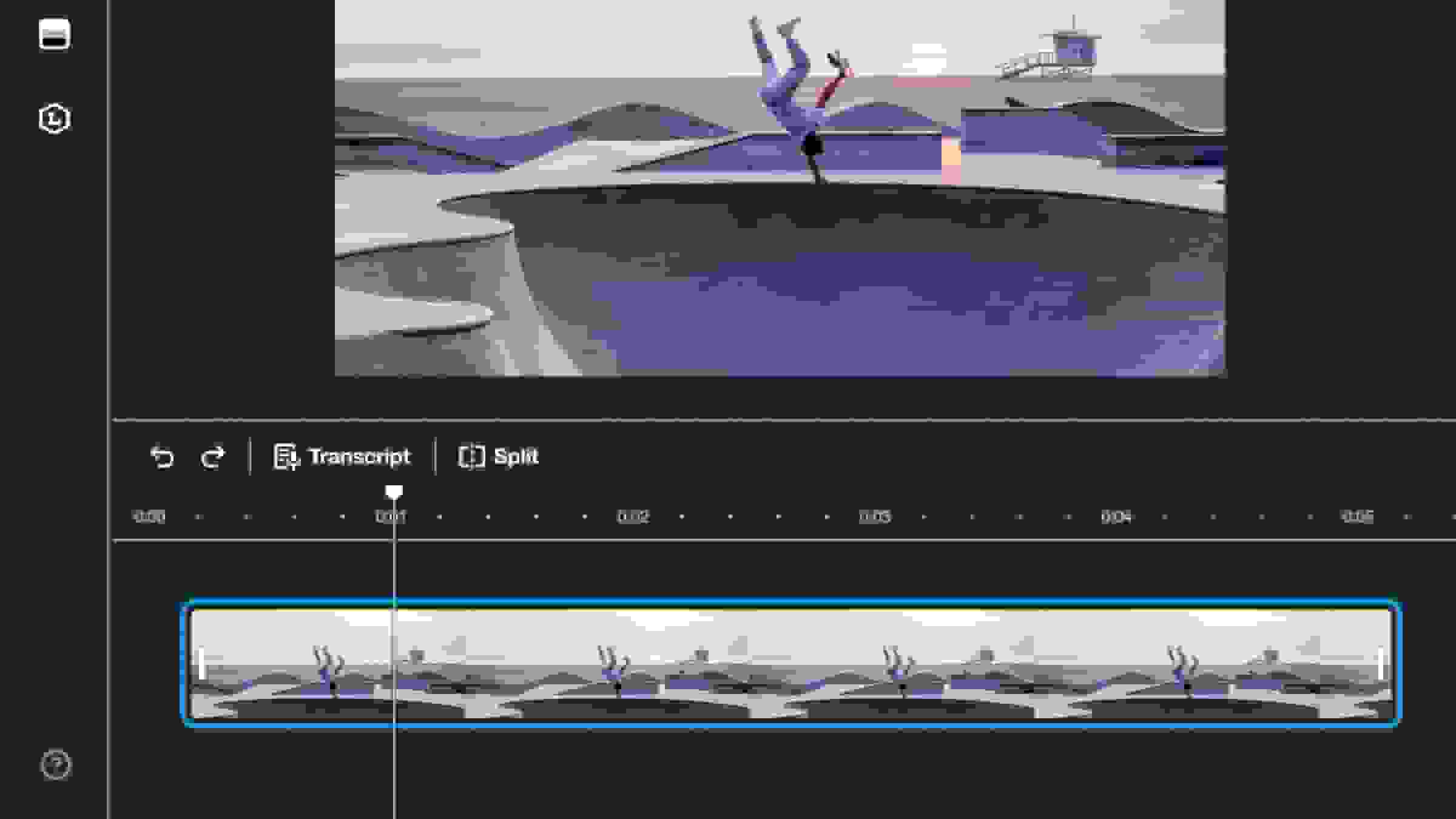
Use Vimeo’s built-in video editor and AI tools to trim, cut, and clean up your video before finalizing it.
Step 3: Choose your compression settings
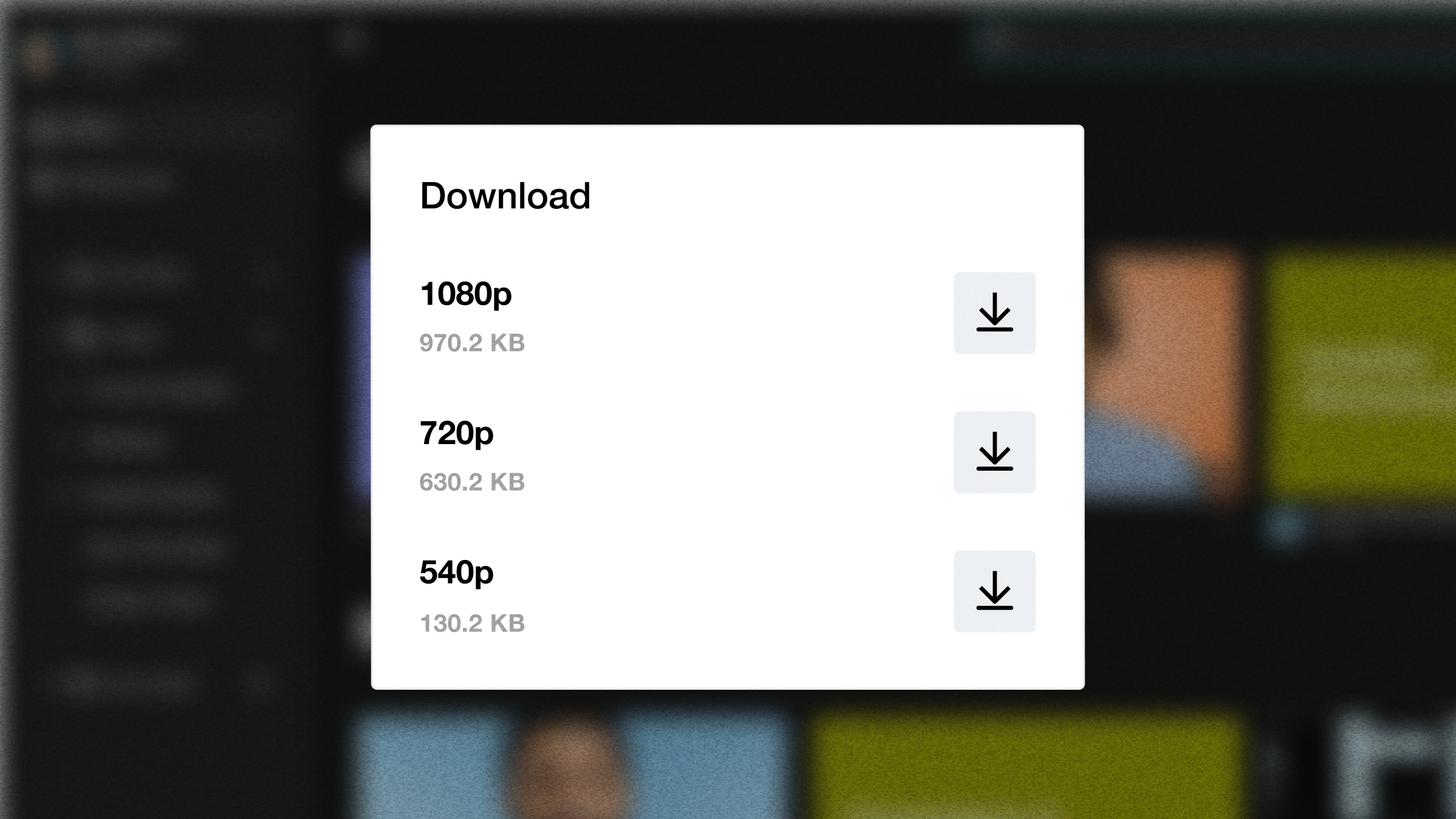
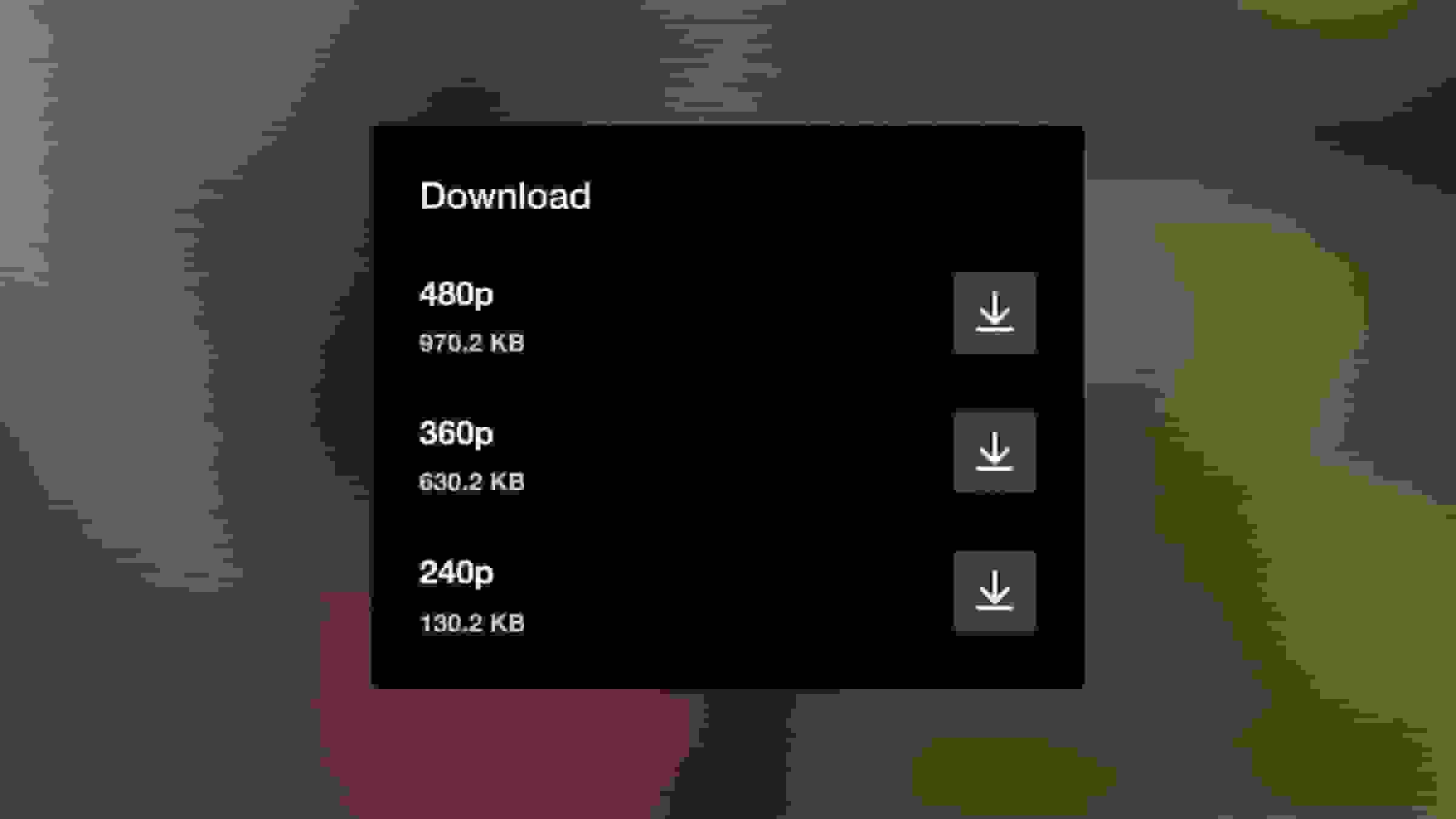
Vimeo automatically transcodes your video on upload. When you’re ready to download, pick your target resolution from 240p up to 1080p, and Vimeo will show you an estimated file size before you commit.
Step 4: Download or share
Download your compressed MP4 or share it directly via a link (private or not), embed, or your Vimeo video library.
Everything you need to edit videos online
- Learn more
Video editor
Transform your raw video footage into captivating content with our versatile video editor. - Learn more
Video trimmer
Use Vimeo’s easy video trimmer to shorten, crop, and cut video so you can make the perfect video in seconds. - Learn more
Add text to video
Make it easy for viewers to follow along with your video, whether your audience has their sound on or off. - Learn more
Add music to video
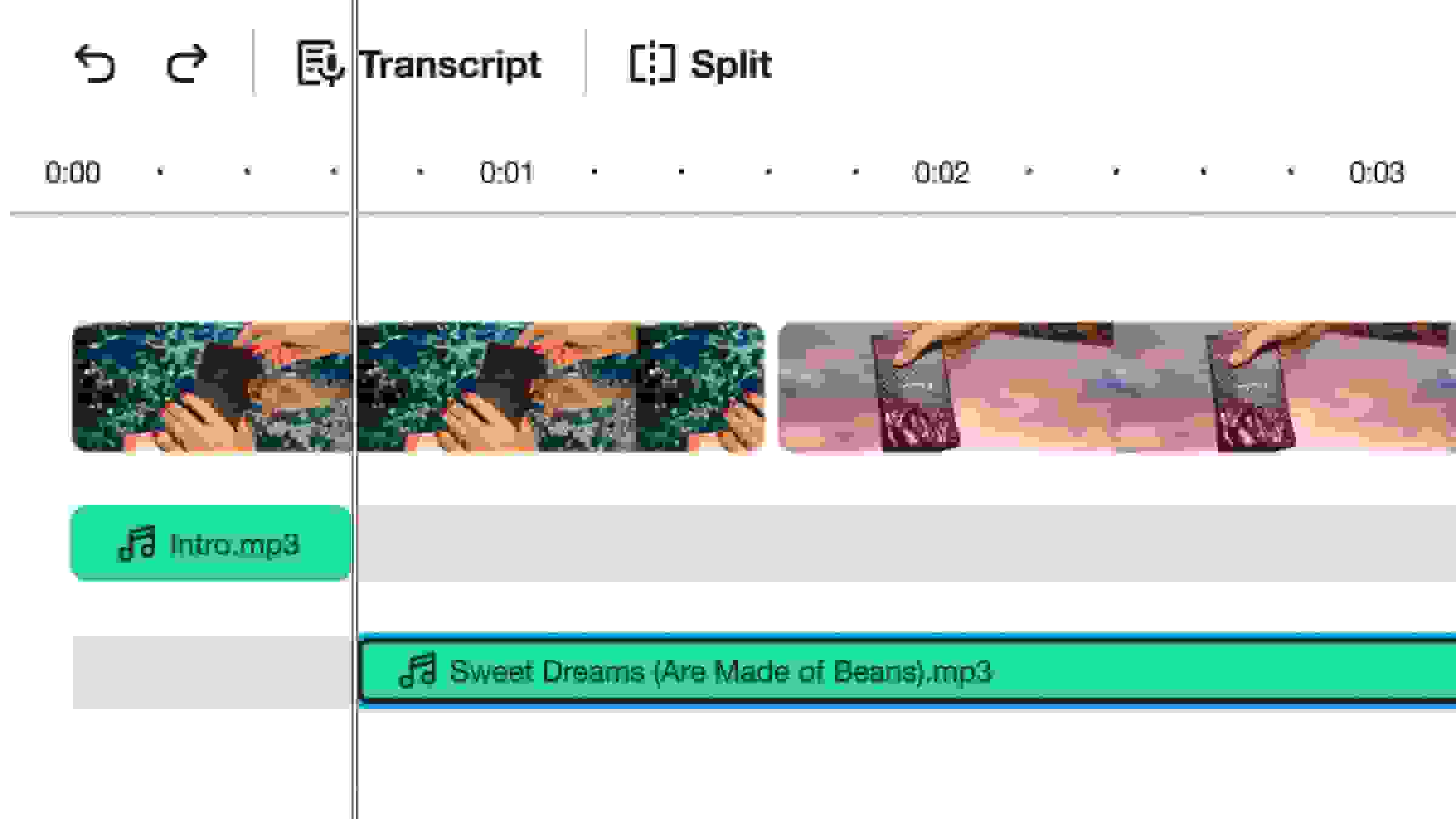
Upload your own music tracks, or choose from hundreds of royalty-free songs. - Learn more
Crop video
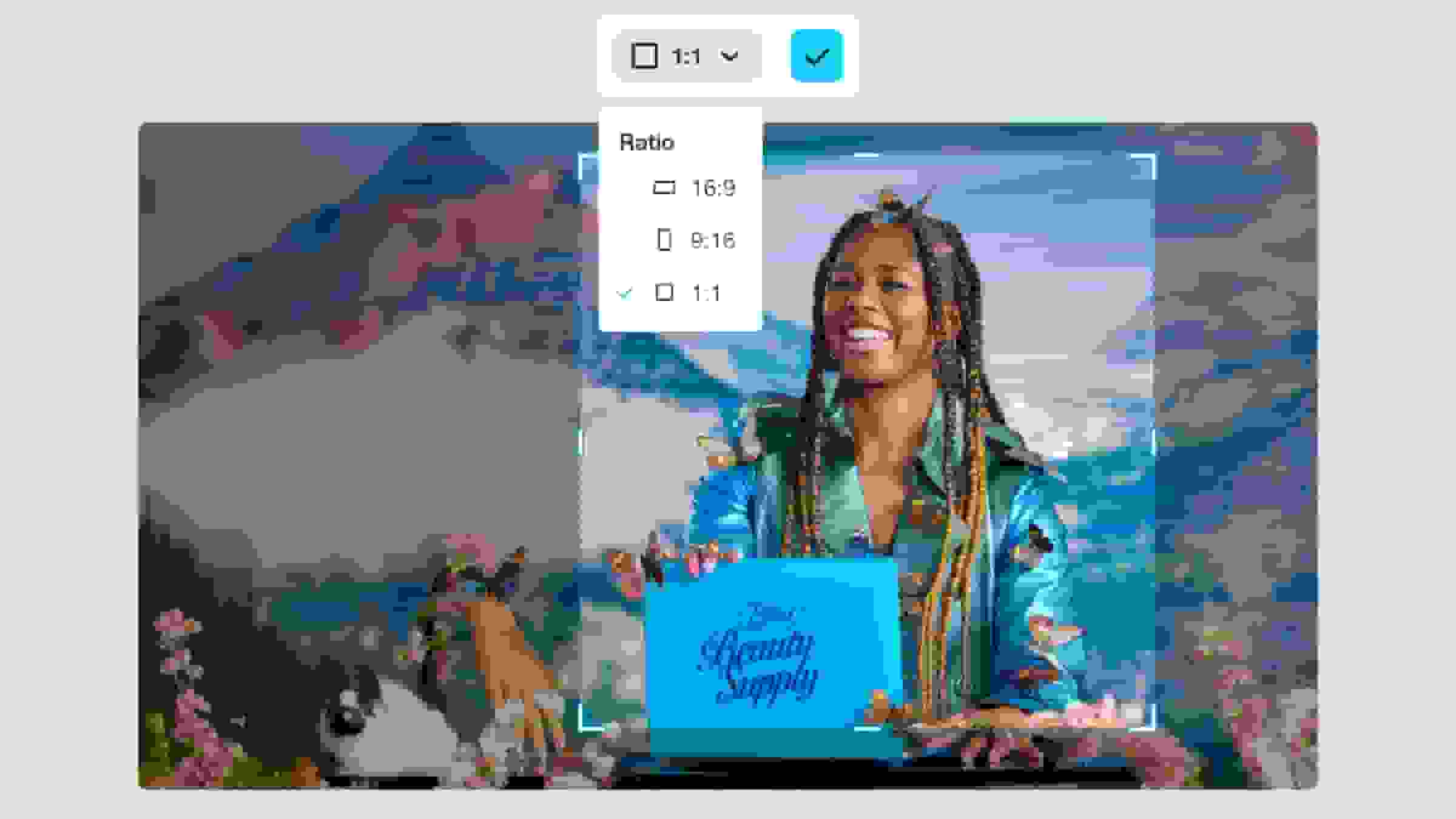
Scale your video to the right specs for any platform. - Learn more
Video combiner
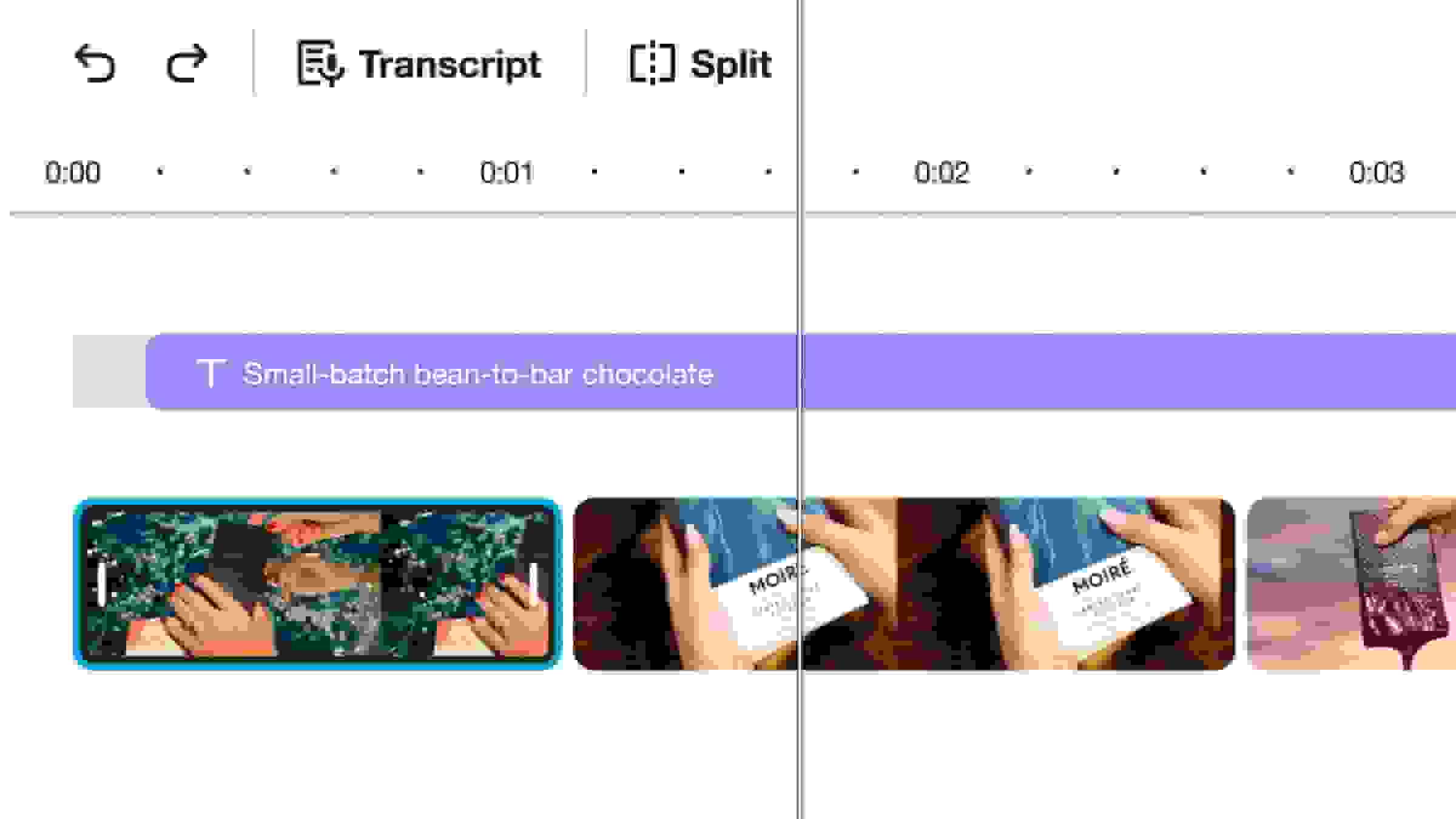
Merge multiple clips into one to create a polished video quickly. - Learn more
GIF maker
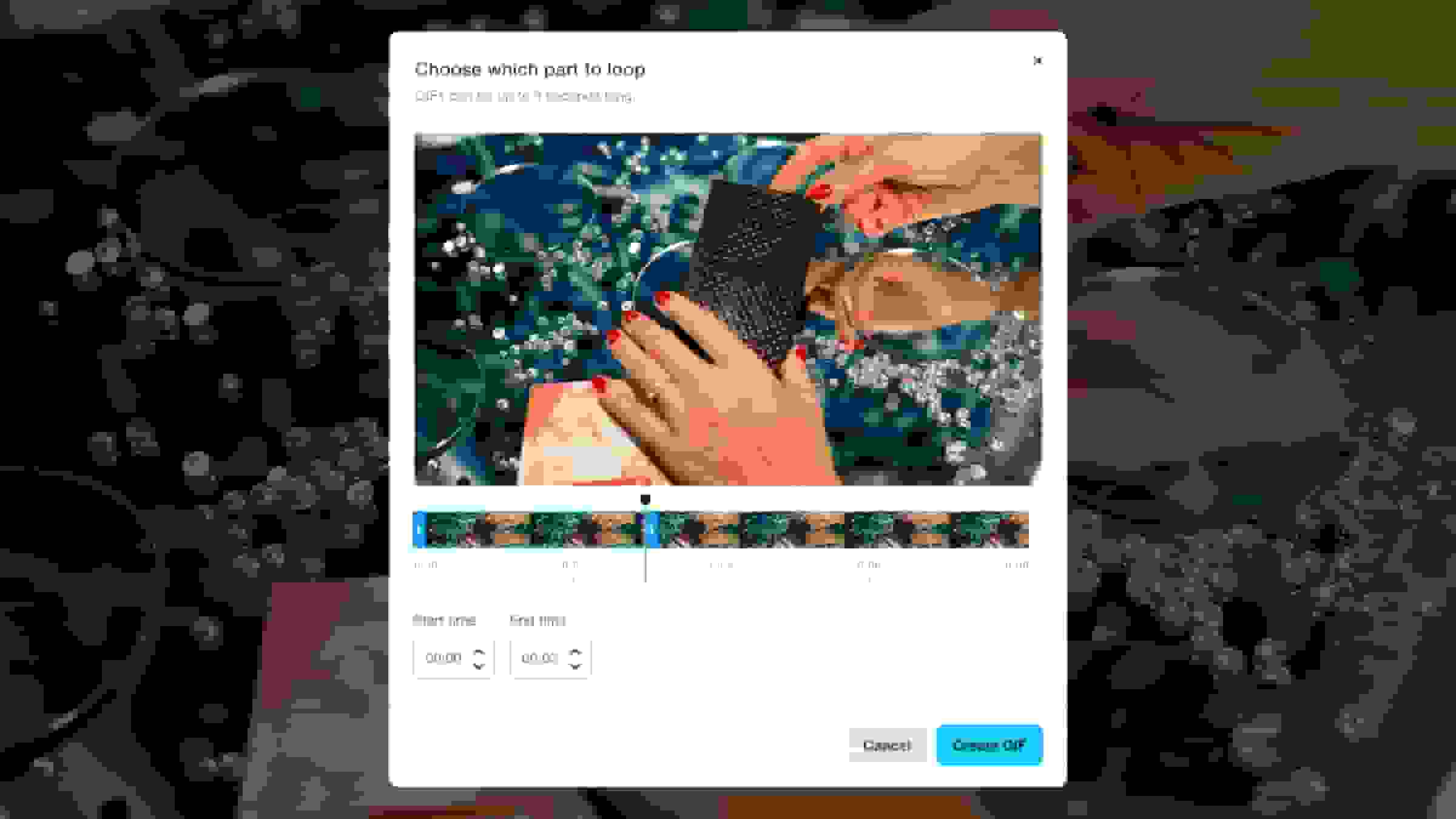
Use any clip to create a high-quality animation in seconds. - Learn more
Convert image to video
Create a dynamic photo slideshow using still images. - Learn more
Resize video
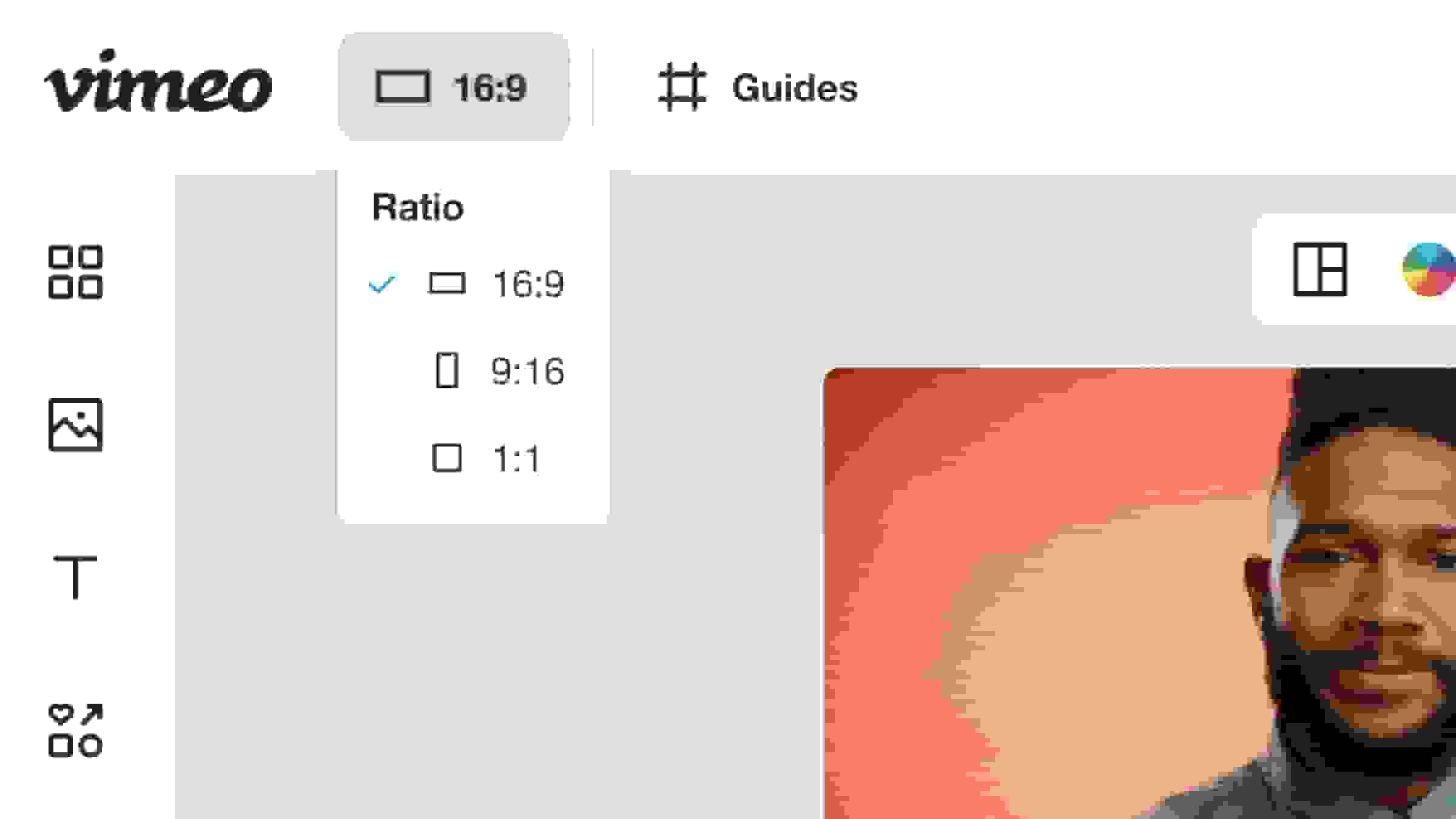
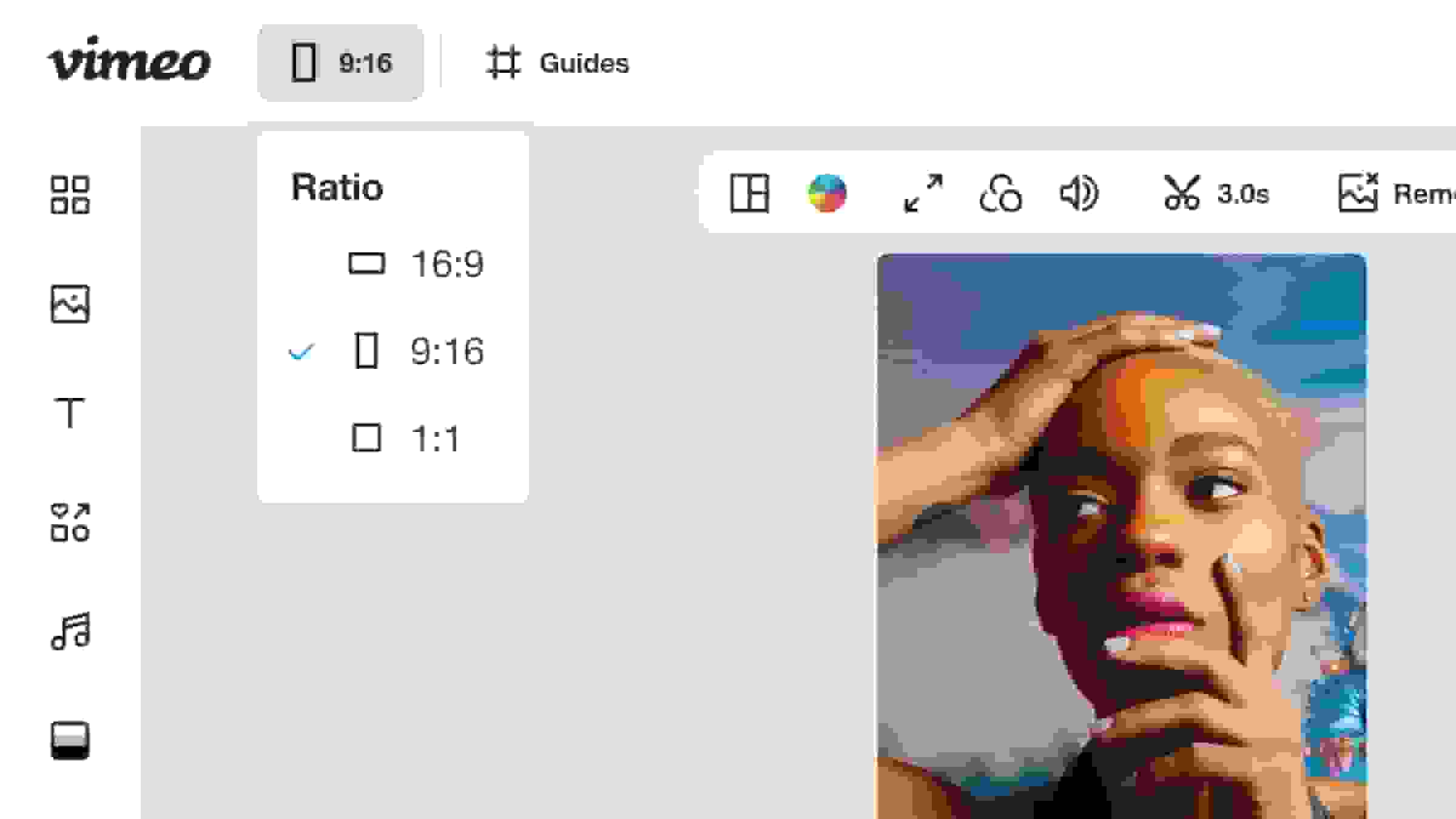
Change your video's aspect ratio or dimensions to fit any format. - Learn more
Add watermarks to videos
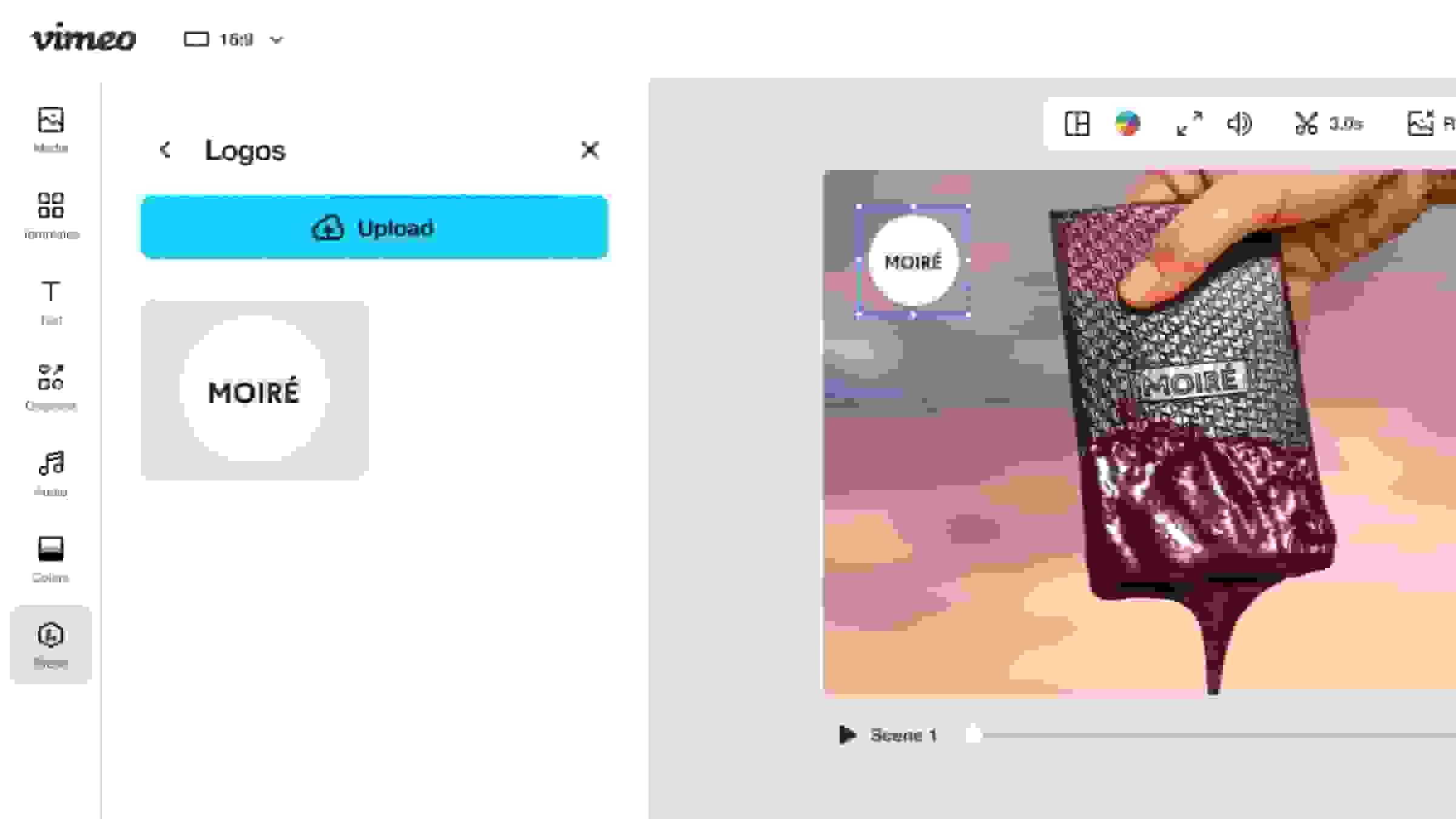
Build brand awareness and protect your creative work. - Learn more
Add video graphics
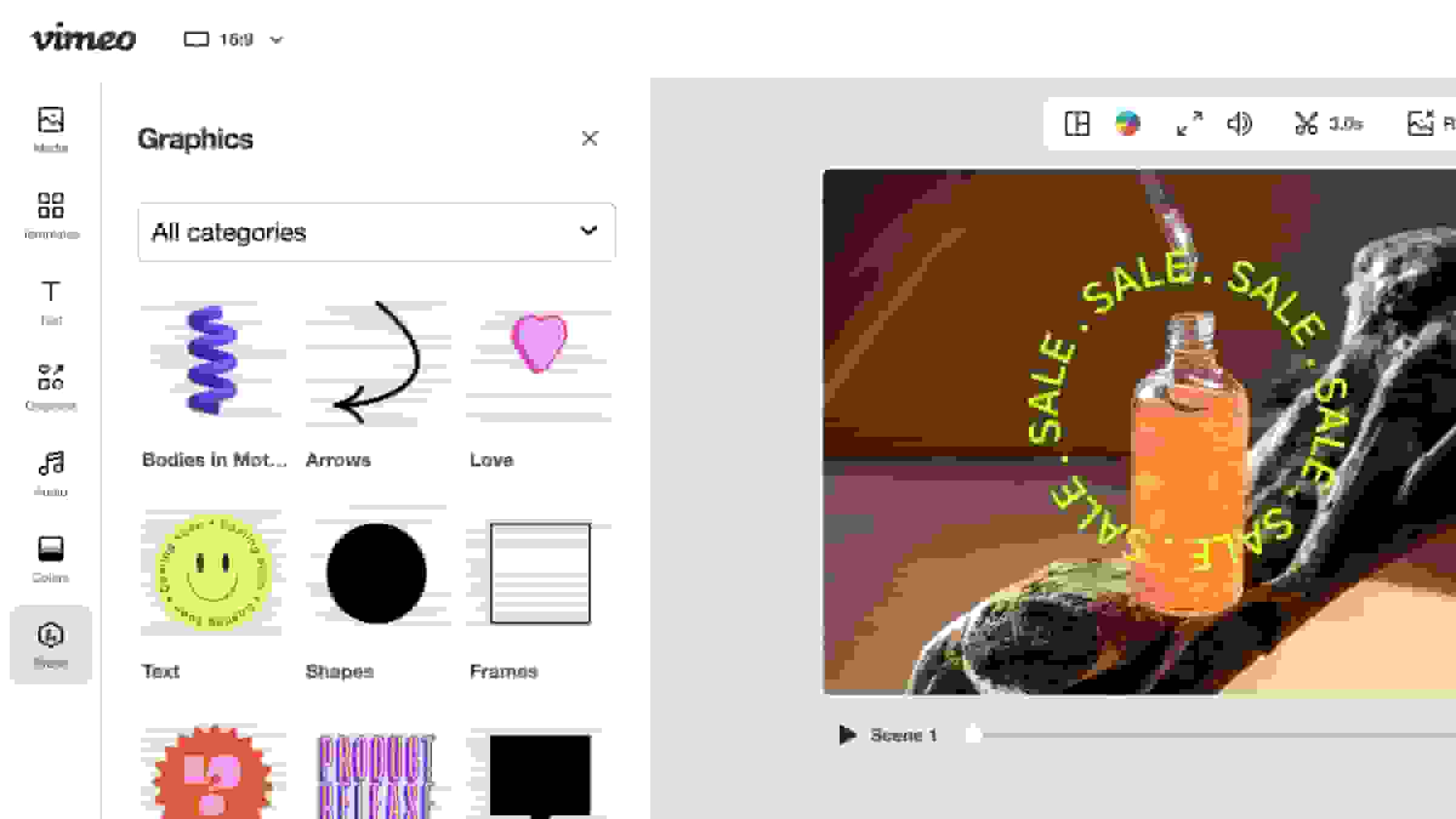
Stickers, animations, and custom graphics can add a touch of personality. - Learn more
Drag-and-drop timeline editor
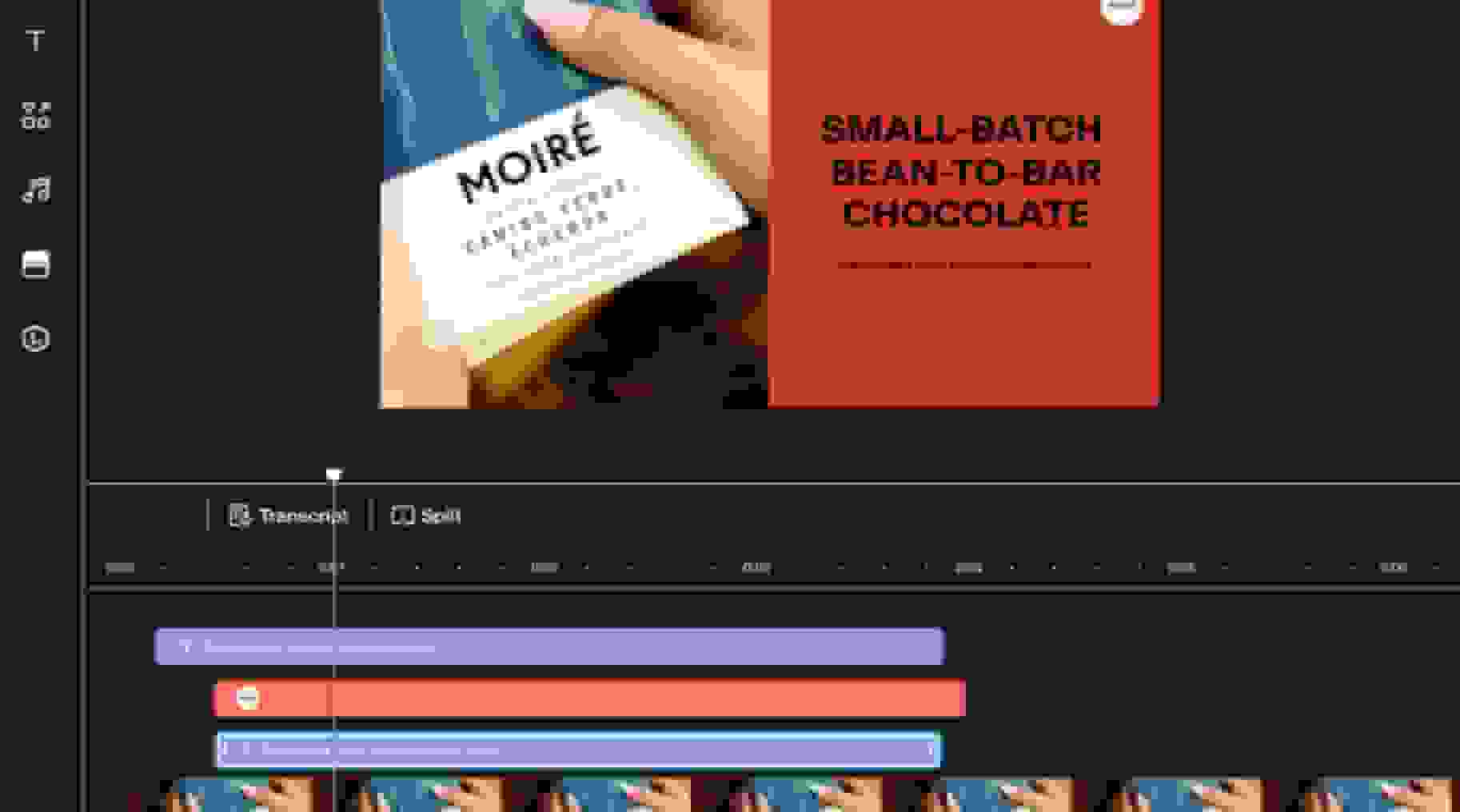
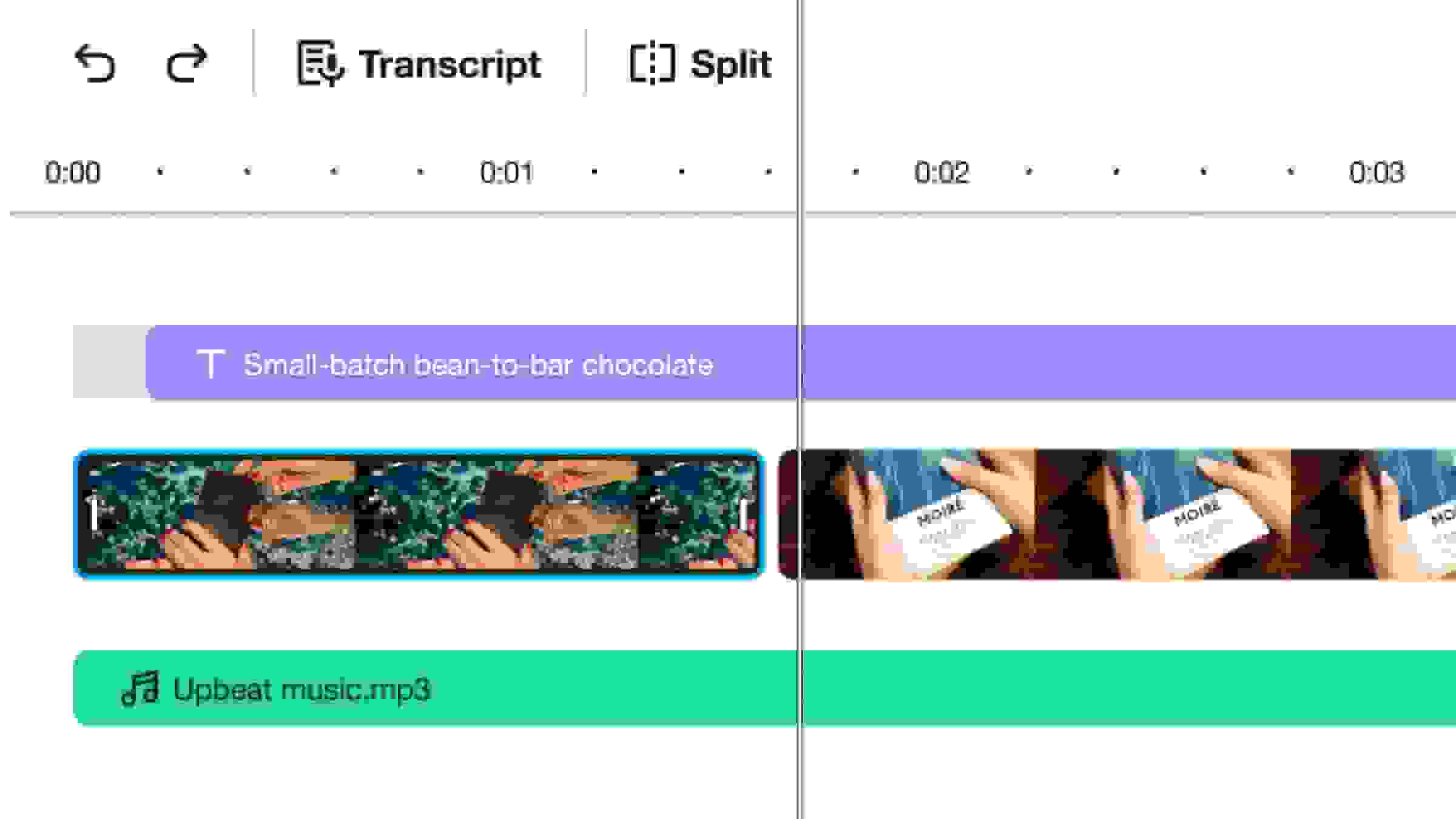
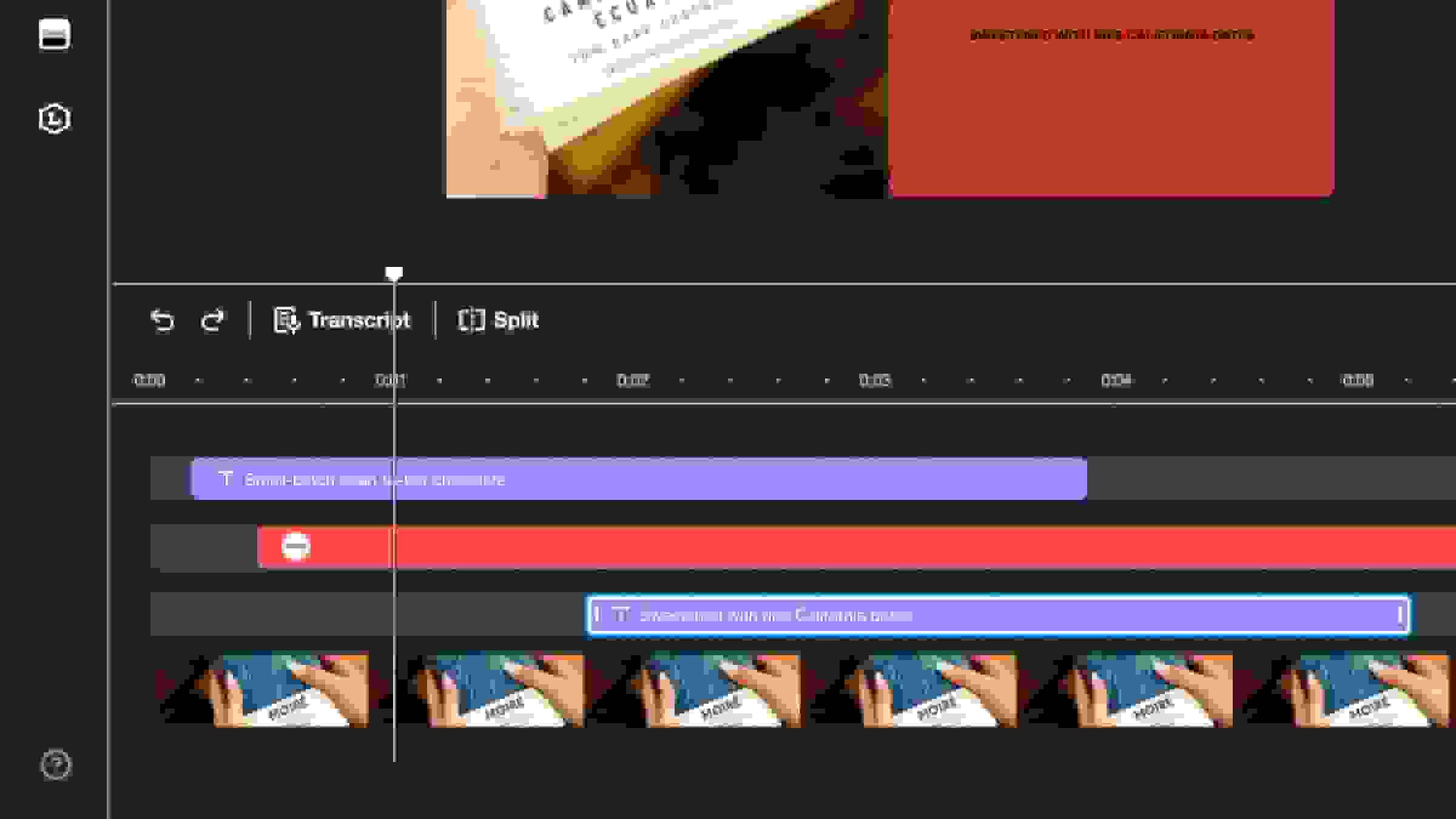
Layer video clips, audio tracks, and text, giving you complete control over your videos. - Learn more
Add audio to video
Add sound effects, narration, voiceovers, and commentary to videos. - Learn more
Add custom fonts
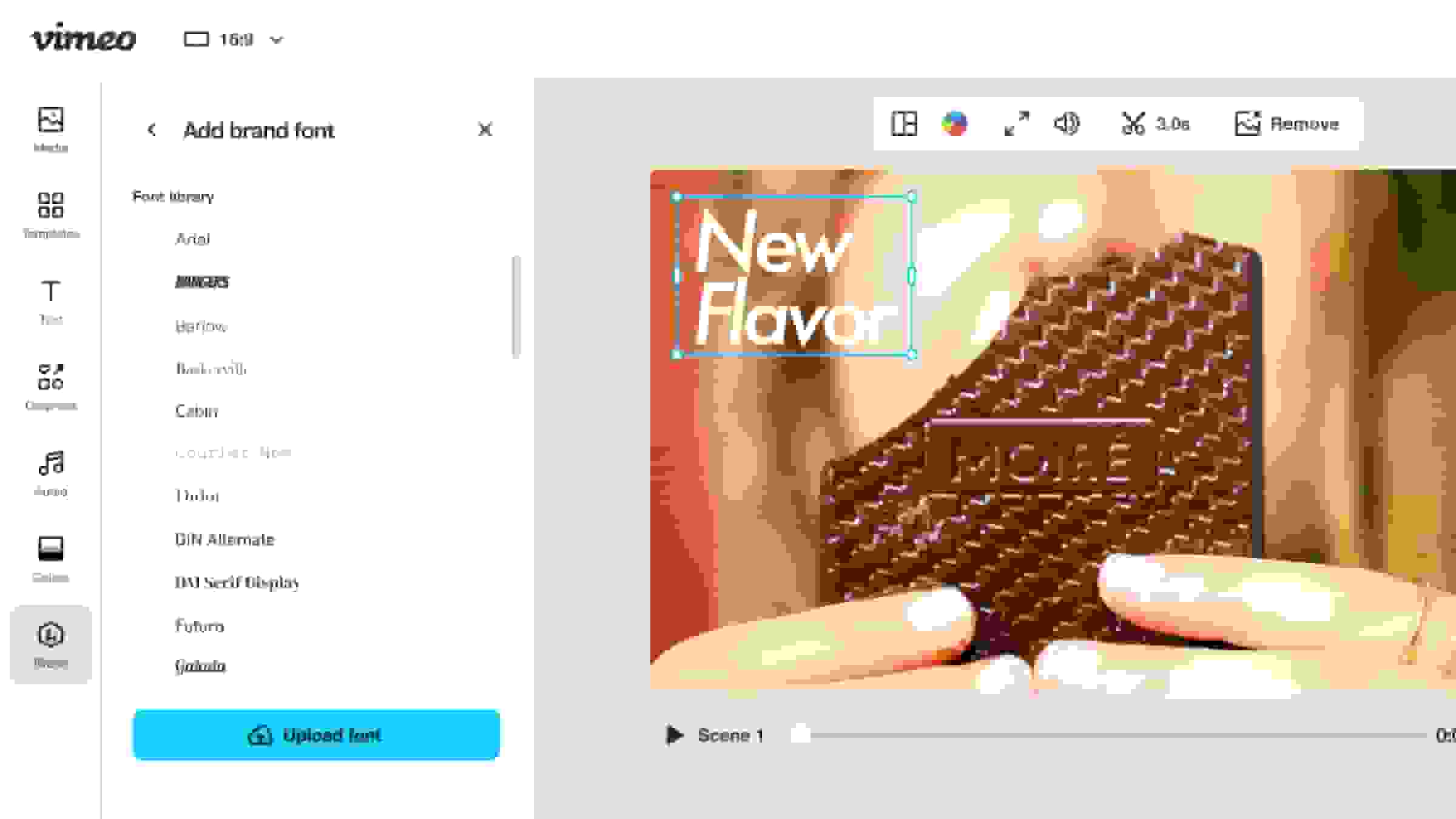
Upload custom fonts to make your videos match your brand identity. - Learn more
Text-based video editor
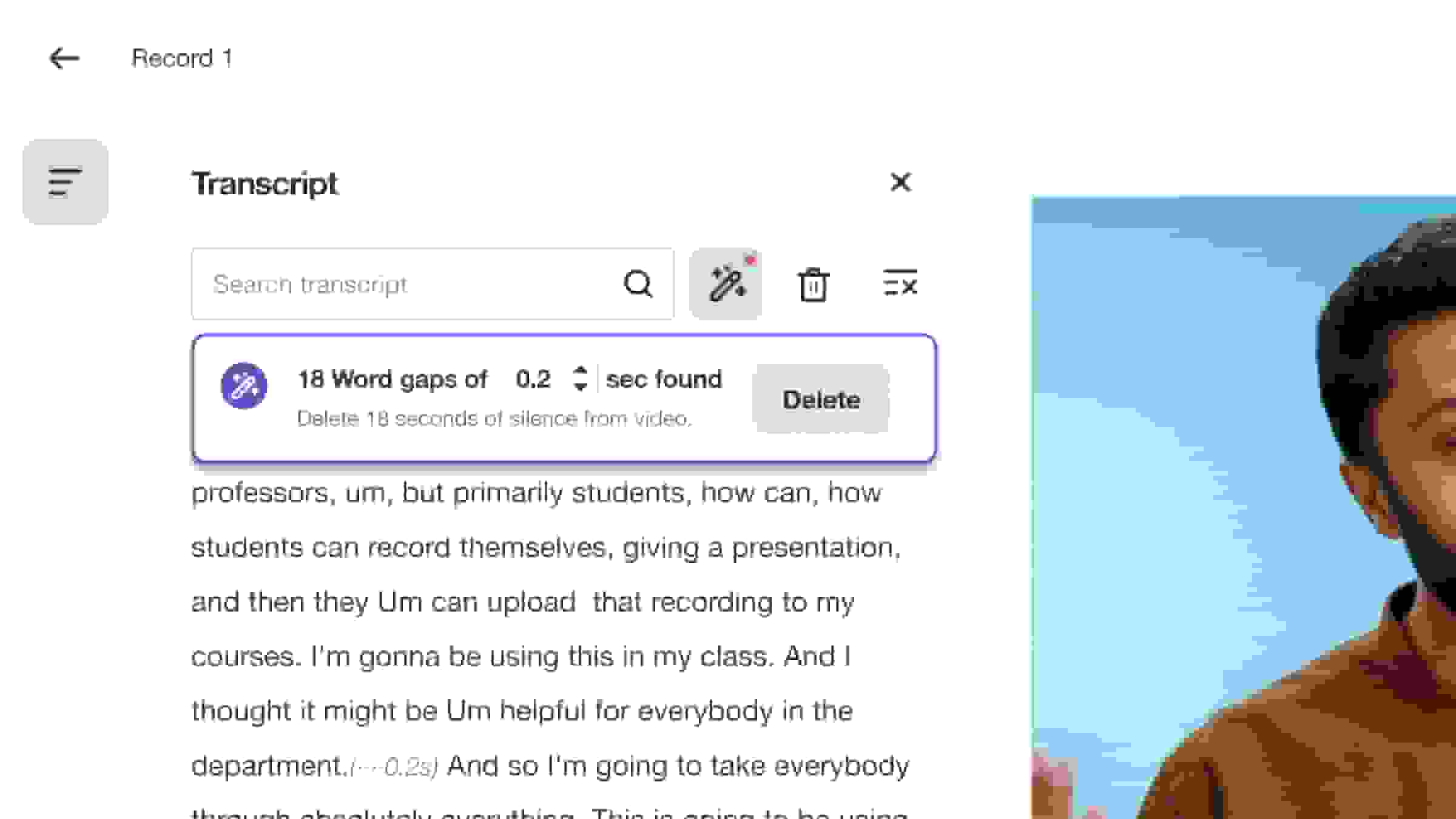
Select the text from your transcript and hit delete to remove portions of your video. - Learn more
Repurpose videos
Optimize video content for sharing across email, websites, and social media platforms. - Learn more
Download Vimeo videos
Create, edit, download, and share your videos in the all-in-one Vimeo video editor.